My 4-Hour FFmpeg Repair: Fixing "moov atom not found" Without Re-Exporting
A broken MP4 at midnight, a deadline at dawn, and the repair workflow that finally rebuilt a playable file.
3 SEO title ideas
- 4 Midnight Fixes for the "moov atom not found" FFmpeg Error
- 7 Lessons From Repairing a Corrupted MP4 Under Deadline Pressure
- 3 Practical Ways to Rescue a Broken MP4 Before You Re-Export Everything
Why this guide converts
Every post on Media Hub is built around one job: helping people fix a file problem fast, without handing private files to a random upload service.
You will see practical limits, real mistakes, and the exact local workflow that fits the tool.
Your export hit 100 percent. The deadline did not move. The MP4 will not open. If FFmpeg says moov atom not found, you are not dealing with a cosmetic bug. You are dealing with a broken container index, and the clock starts immediately.
The repair map that kept me sane
I lost the first hour because I was reacting, not diagnosing.
Once I wrote down the attempts, the path became much clearer.
| Attempt | What I tried | Result | What it taught me |
| --- | --- | --- | --- |
| -movflags faststart | Tried to rewrite the MP4 structure | Failed immediately | You cannot move an index that does not exist |
| untrunc with a reference file | Borrowed headers from a similar export | Partial recovery | Helpful, but not always clean enough |
| Raw stream extraction | Pulled video and audio out separately | Worked | The payload was alive even if the container was broken |
Three moments from the repair session
The first was the black-screen moment. VLC showed nothing. Google Drive could not process the file. That told me the problem was deeper than a picky media player.
The second was the false hope from faststart. I wanted the easy win. Instead, FFmpeg reminded me that a missing moov atom is not a cosmetic placement issue. It is structural damage.
The third was the breakthrough. Once I stopped trying to "pretty up" the MP4 and started extracting raw streams, the job finally moved forward.
Pro Tip: Duplicate the broken source before you touch anything. Repair work gets messy fast, and the untouched original is often the only thing that lets you try a second path later.
The exact error that mattered
I ran this first:
ffmpeg -v error -i final-cut-v3.mp4 -f null -
Then FFmpeg printed the line I needed:
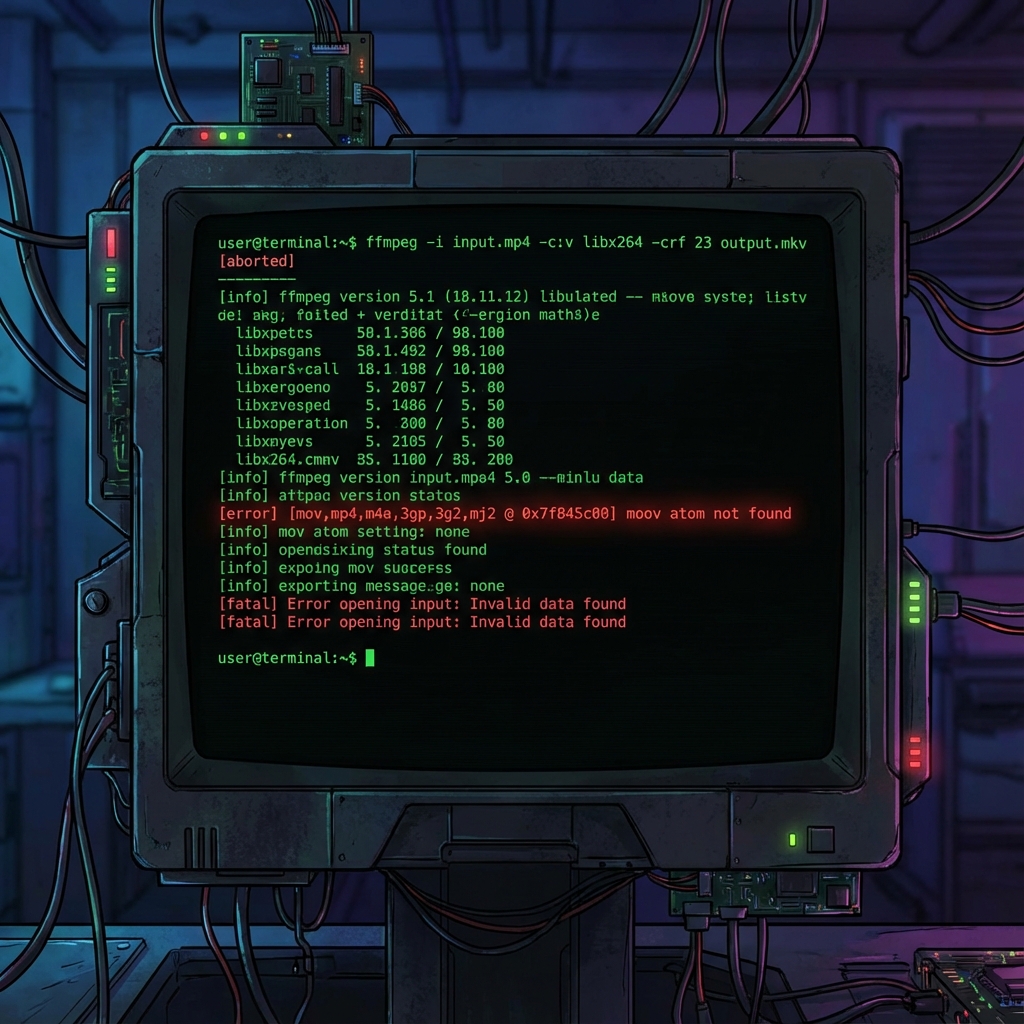
[mov,mp4,m4a,3gp,3g2,mj2 @ ...] moov atom not found
Error opening input: Invalid data found
That message narrowed the problem. The media data might still exist, but the file index was gone or unreadable.
What finally worked
First, I extracted the raw video stream while ignoring read errors:
ffmpeg -err_detect ignore_err -i final-cut-v3.mp4 -c copy raw.h264
That gave me hope, because the raw video came out at nearly the expected size.
Next, I rebuilt a clean MP4 container:
ffmpeg -i raw.h264 -c copy new_container.mp4
Video returned, but audio was missing. So I repeated the salvage pass for audio:
ffmpeg -err_detect ignore_err -i final-cut-v3.mp4 -vn -acodec copy raw.aac
ffmpeg -i new_container.mp4 -i raw.aac -c copy -map 0:v:0 -map 1:a:0 final_fixed.mp4
Pro Tip: If a repair path starts writing over your only copy, stop. Salvage should create new files, never mutate the original until you know you have a winner.
The outcome and the practical lesson
I opened the repaired file and it played.

That repair took four hours because I treated a container problem like a codec problem at first.
For deep failures, command-line tools are still the right answer.
For everyday jobs like converting a camera file to MP4, shrinking an oversized clip, or preparing something for upload, I now default to Media Hub and keep the terminal for the cases that truly deserve it.
If you want a safer everyday workflow before files get this broken, start with our compression guide or browse the rest of the routes in the format explorer.
Meta Description
Facing the FFmpeg "moov atom not found" error? Here is the repair sequence that helped recover a broken MP4 without a full re-export at 2AM.